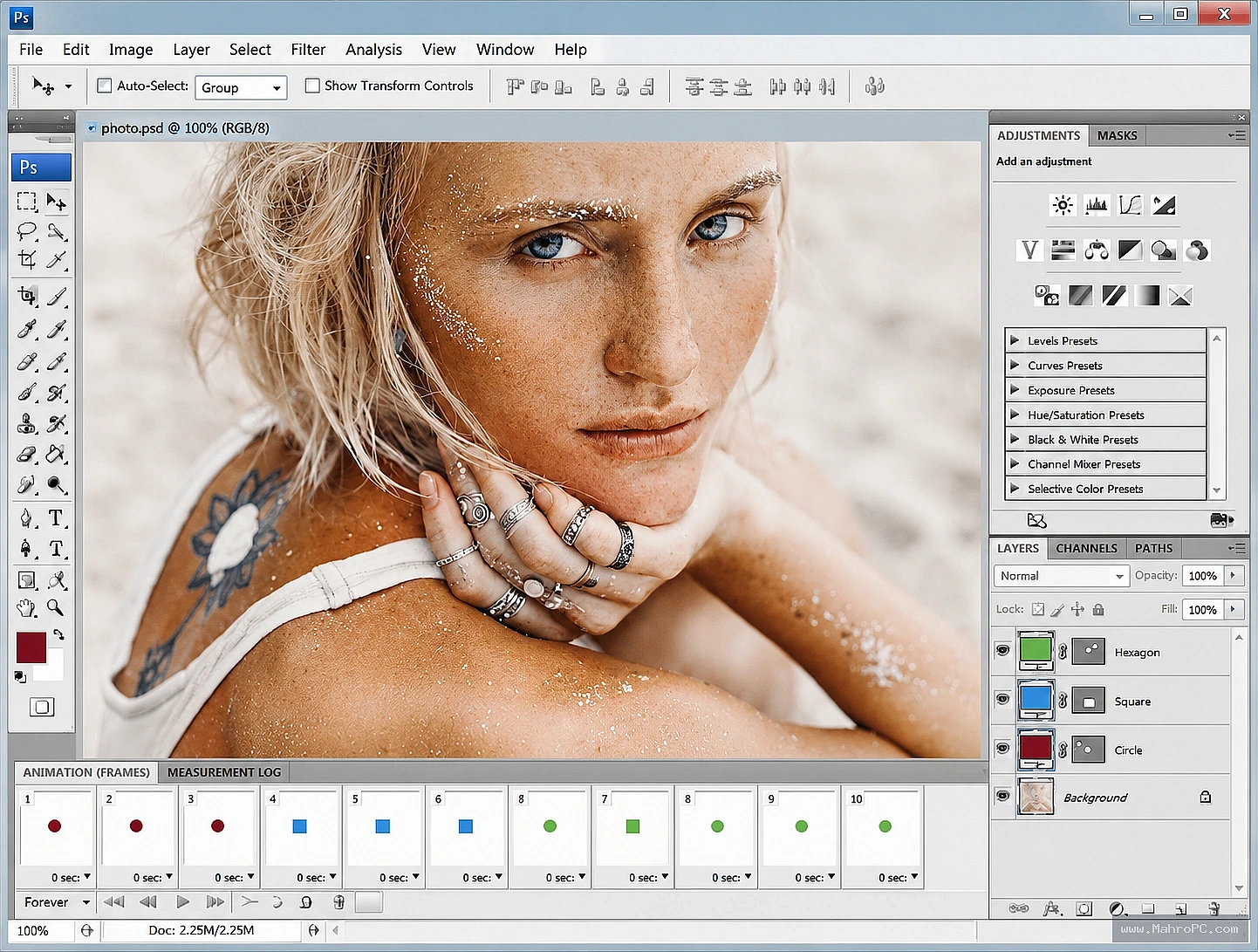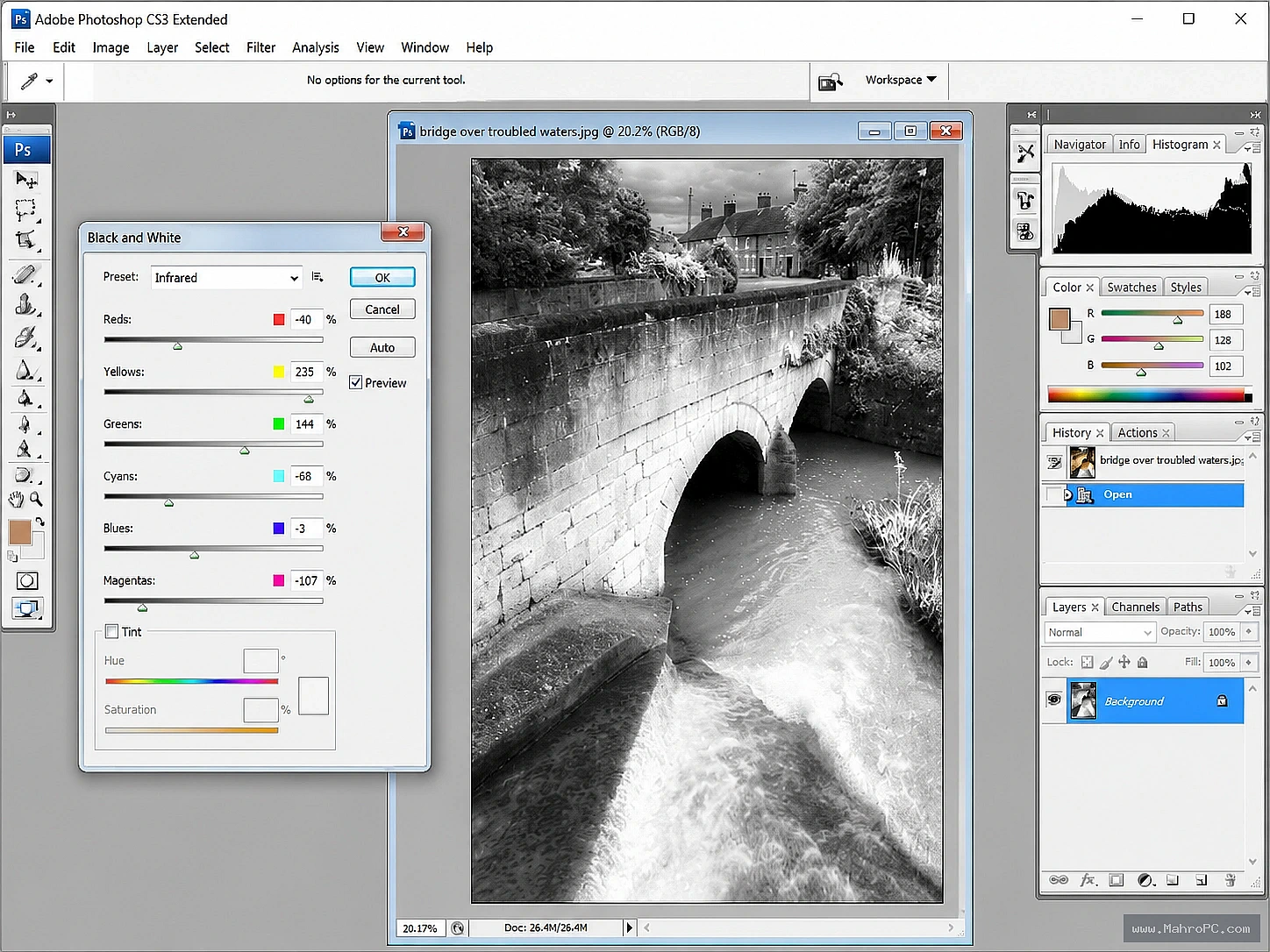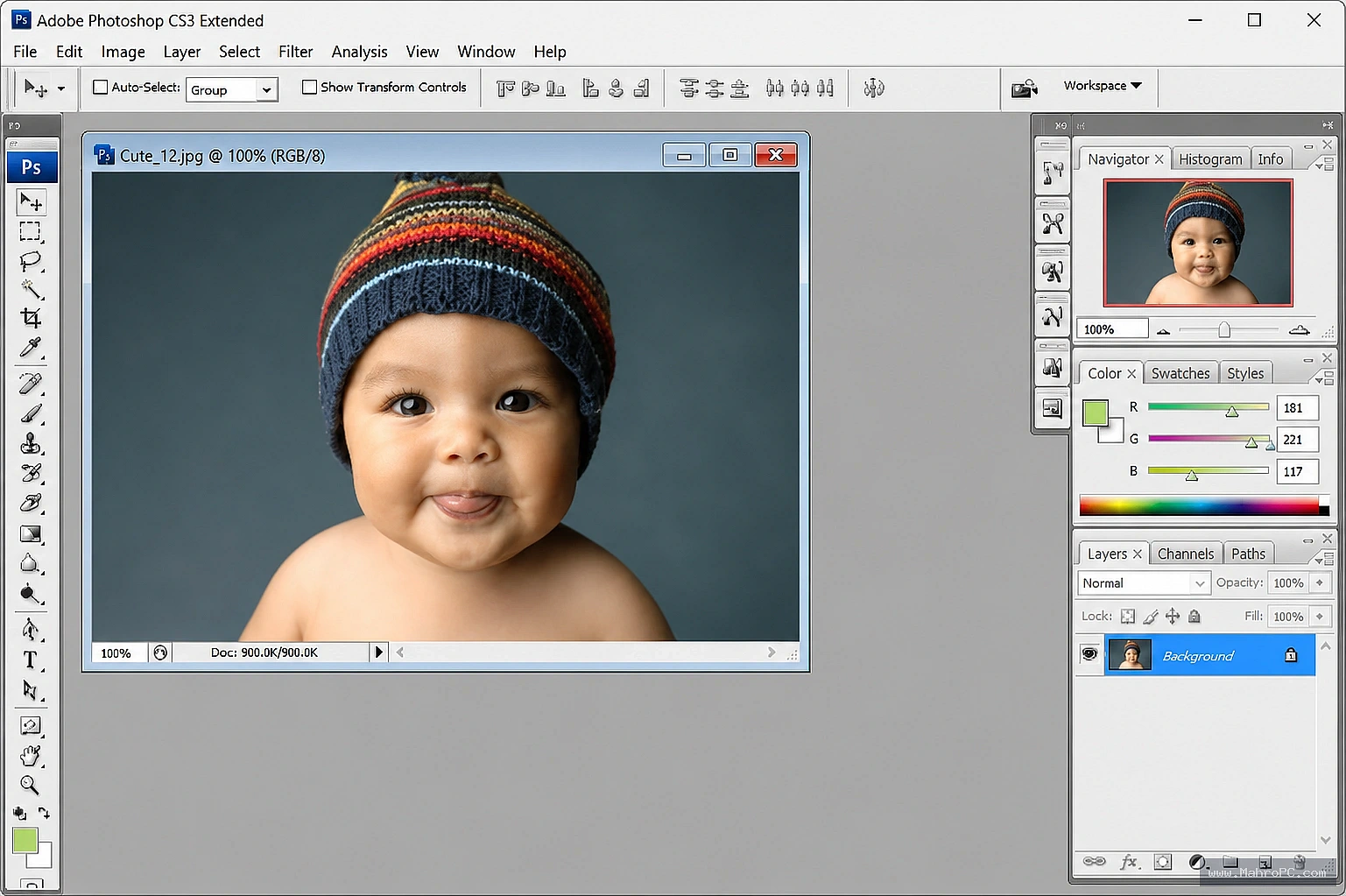
Photoshop CS3 Fix: Keep Your Photo Editing Software Running Flawlessly
A few gentle tweaks can solve most problems. You don’t need to be a tech wizard. I will walk you through each step in a friendly way. Let’s get your favorite tool back on track so you can create freely again.
Why Photoshop CS3 Needs a Little Help
Older software can feel moody on newer systems. Photoshop CS3 was built for a different time. Updates to your computer can cause tiny conflicts. You might see a frozen screen or a random crash.
That is no reason to give up on your beloved photo editing software. A simple Photoshop CS3 fix is like a gentle tune up. A bit of care keeps it running smoothly for years.
Start With the Kindest Fixes First
Always begin with the easiest tricks. Close other programs and restart your computer. This clears temporary clutter and refreshes everything. It often becomes the only Photoshop CS3 fix you need.
If that does not work, try running the program as an administrator. Right click the icon and choose “Run as administrator.” This gives it proper permission to read and write files. Many startup errors vanish right away.
You may also like :: Algorius Net Viewer Latest Software
Reset Preferences to Refresh Your Workspace
A corrupted preference file can cause odd behavior. Hold down Ctrl, Alt, and Shift right after you double click the icon. On a Mac, use Command, Option, and Shift instead. Keep holding until a dialog box appears.
Click “Yes” to delete the settings file. Photoshop will launch with fresh factory settings. Brushes, panels, and performance options all return to normal. This single step solves many unexplained crashes.
Tackle Freezing and Scratch Disk Errors
Does Photoshop CS3 freeze when you open a large file? The scratch disk might be too full. This disk acts as extra memory for your photo editing software. Free up space by deleting old files and emptying the recycle bin.
You can also assign a different scratch disk in preferences. Choose a drive with plenty of free gigabytes. Another helpful move is lowering the history states to about 20. These tiny changes prevent lag and keep your flow smooth.
You may also like :: AnyTime Organizer Deluxe Latest 2026
Solve Installation and Activation Problems
Installing on a newer Windows version can trigger activation errors. Do not panic. Your valid serial number still works. Run the installer in compatibility mode for Windows XP Service Pack 2.
Right click the setup file, open Properties, and go to the Compatibility tab. Select the older system and check “Run this program as an administrator.” Apply the changes and launch the installer again. This gentle push often finishes the job.
Keep Your Classic Software Happy
Update your graphics driver to avoid display glitches. Visit the manufacturer’s website and download the latest stable version. Also, disable hardware acceleration inside Photoshop if the screen flickers. Go to Edit, then Preferences, then Performance. Uncheck “Enable OpenGL Drawing.”
These quiet changes protect your eyes and your work. They make your photo editing software feel stable and responsive. A little proactive love really goes a long way.
You can absolutely keep Photoshop CS3 running like a charm. The fixes are tiny but mighty. Each step brings you closer to a smooth creative experience. Your craft deserves a reliable tool.
Try these tips one by one. If one does not work, simply move to the next. Give your photo editing software the gentle attention it needs. Watch it shine again and enjoy your happy creative flow.
You may also like :: Aiseesoft FoneLab for Android 2026
Frequently Asked Questions
Why does my Photoshop CS3 crash on startup?
A corrupted preference file or missing permissions usually cause this. Reset the preference file and run the program as administrator.
How can I install Photoshop CS3 on Windows 10 without errors?
Set the installer to compatibility mode for Windows XP Service Pack 2 and run it as administrator. Disable antivirus temporarily if needed.
What is the fastest Photoshop CS3 fix for a frozen splash screen?
Reset your preferences first. If that fails, disconnect external devices except the mouse and keyboard.
Can a full scratch disk stop Photoshop CS3 from working?
Yes. Free at least 10 GB on the main drive and assign a secondary scratch disk with even more space.