Introduction
Windows File Explorer often freezes when opening directories containing 50,000 or more items, interrupting workflows and forcing application restarts. OneCommander Pro replaces that single‑threaded shell view with a multi‑threaded, column‑based browser that reads disk structures directly, bypassing slow namespace extensions. The 2026 build refines file queue management and search indexing, but it also demands noticeable RAM and disk space for its local database. This review covers practical performance, resource consumption, setup steps, and licensing details to help download‑oriented visitors decide if it fits their daily file management needs.
Core Architecture and Functional Mechanisms
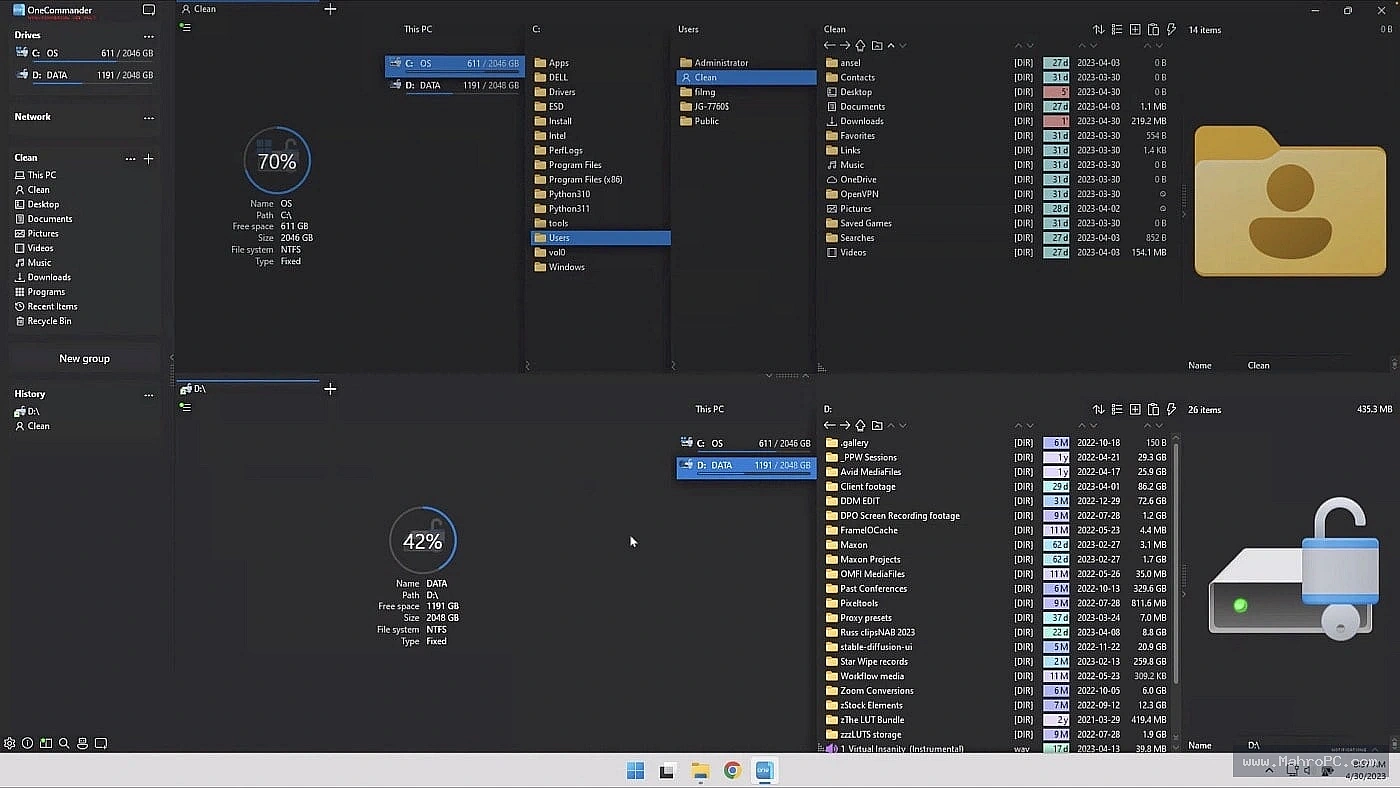
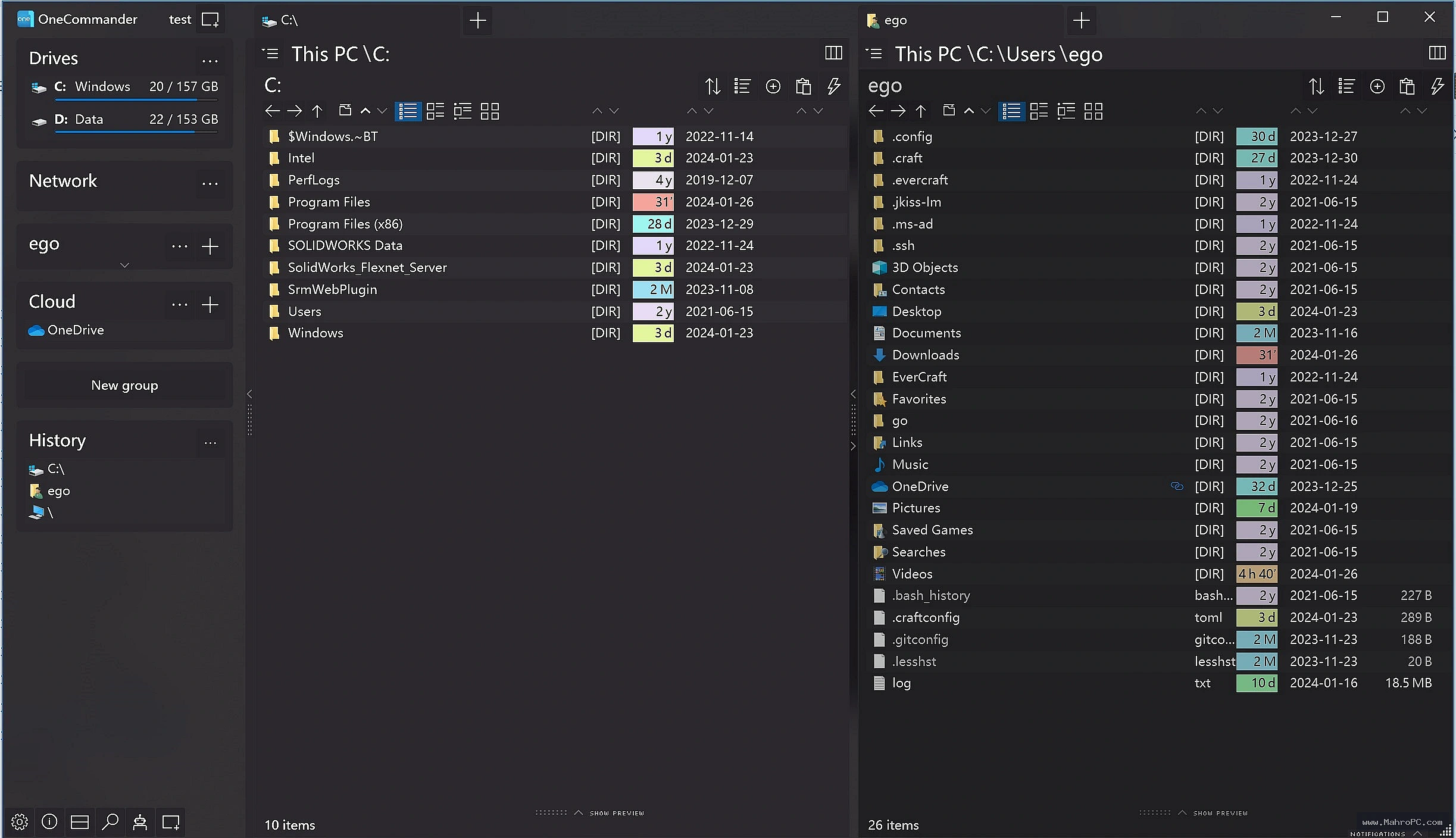
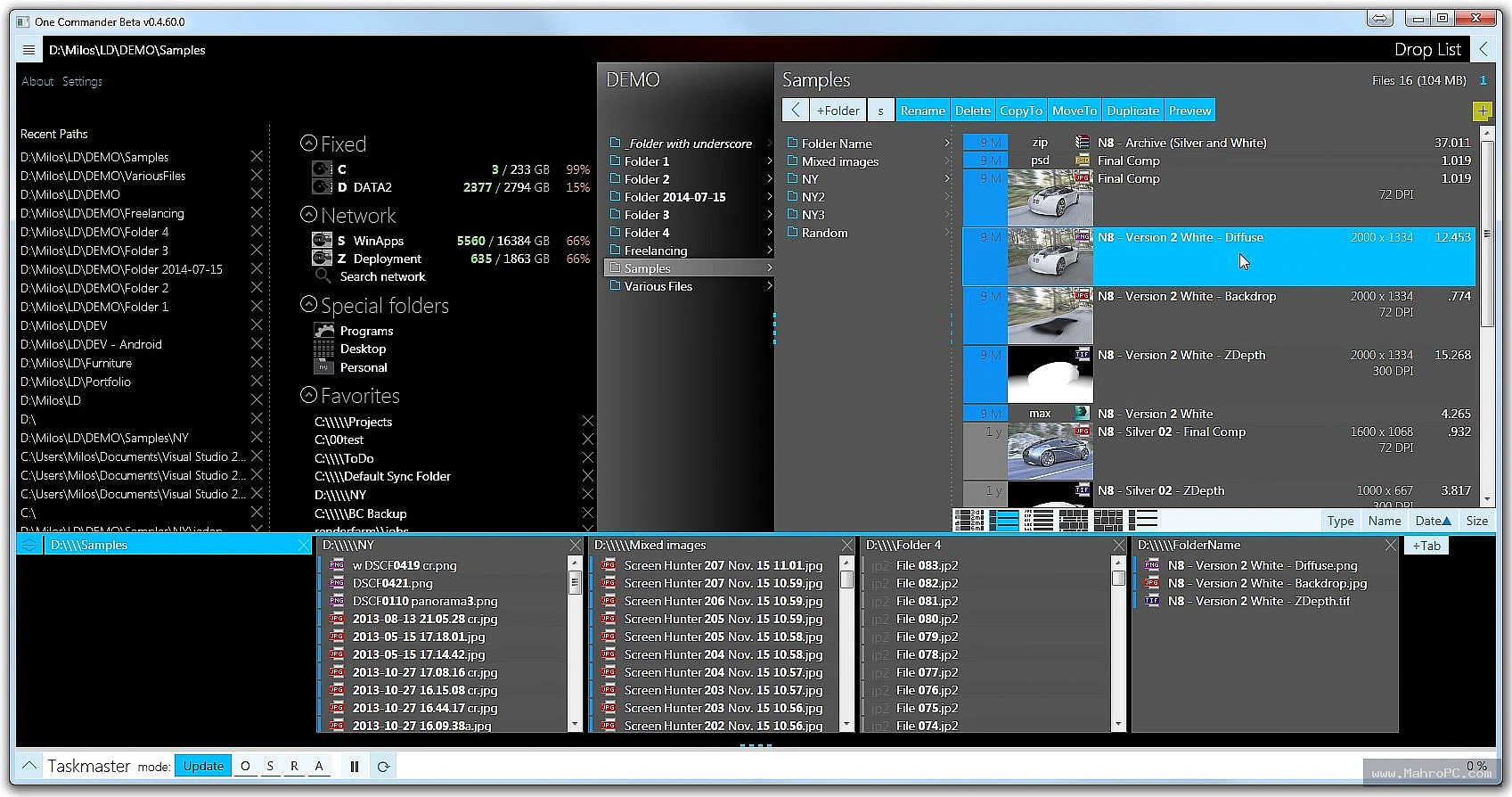
OneCommander Pro reads the NTFS file table using parallel background threads instead of standard Windows file listing routines. This prevents the main window from locking up, even when a folder holds hundreds of thousands of items. A local database file stores file names, sizes, and dates for near‑instant search filtering, removing the need for an external indexing service. The interface uses a column layout where each folder level appears side‑by‑side, letting users see deep paths without repeated back‑and‑forth clicks. File copy, move, and delete operations are handed to a dedicated queue manager that shows transfer speed, remaining time, and conflict errors individually.
You may also like :: NCH VideoPad Pro Review 2026
Pros & Cons
-
Pros:
-
Multi‑threaded folder loading keeps the interface responsive even with 100,000‑item folders, avoiding the freezing common in File Explorer.
-
Column‑based navigation shows multiple folder levels horizontally, cutting clicks and making cross‑folder drag‑and‑drop direct.
-
Instant local database search returns results as you type, without re‑scanning the drive.
-
Managed copy queue provides pause, resume, skip, and detailed per‑file error reports instead of aborting the whole batch.
-
-
Cons:
-
RAM usage scales with displayed items; a 500,000‑file folder can commit over 1 GB of memory, impacting systems with 8 GB total RAM.
-
The search index database may grow to several gigabytes on large drives, consuming significant free space.
-
Windows shell extensions, cloud file status overlays, and some right‑click context menu entries do not appear inside the program.
-
Key Technical Capabilities Analyzed
Column‑Based Folder View
Adjacent columns display parent and child folders simultaneously, reducing the navigation steps needed to reach deeply nested directories. Files are virtualized so only visible rows use resources.
Managed File Queue
Copy and move jobs are queued with real‑time speed graphs and error isolation. Failed items can be retried individually, preventing the entire operation from stopping.
Local Search Database
A built‑in index stores file metadata, enabling immediate filtering by name, extension, size, or date. No re‑scanning of the disk occurs when typing a query.
You may also like :: Abelssoft Undeleter 2026 Latest Software
Enterprise Infrastructure & Optimization Guide
No network ports need opening because the program runs locally. The single update check uses standard HTTPS and can be disabled in settings if desired. To prevent slowdowns, add the index database folder (usually inside LOCALAPPDATA OneCommander) to antivirus exclusion lists; real‑time scanning of the database file causes noticeable lag when browsing large folders. Keep the program and its database on an NVMe SSD rather than a hard drive to reduce index read latency. On laptops, using the “High Performance” power plan stops the drive from entering sleep states during long folder loads.
Hardware & System Requirements
| Component | Minimum Configuration | Recommended Specification |
|---|---|---|
| CPU | Intel Core i3‑8100 | Intel Core i5‑12400 or better |
| Memory | 8 GB RAM | 16 GB RAM (32 GB for 200k+ file folders) |
| Storage | 7200 RPM HDD | NVMe SSD with at least 10 GB free for index |
| Graphics | DirectX 12 integrated GPU | Any DirectX 12 GPU with 2 GB dedicated VRAM |
| Operating System | Windows 10 21H2 (64‑bit) | Windows 11 23H2 (64‑bit) |
Important: This is a clean, standalone offline installer of the Professional edition, provided strictly for evaluation and testing purposes.
Operational Decision Matrix (Verdict)
-
Deploy If: You routinely handle folders with tens of thousands of files, require a reliable file copy queue that does not stop on the first error, or prefer a column view that shortens folder navigation. The Pro license (one‑time purchase) is justified by the time saved during bulk file operations and the elimination of Explorer freezes.
-
Avoid If: Your work depends on third‑party shell extensions, cloud‑sync status icons, or overlay shortcuts that the program cannot display. Avoid on machines with only 8 GB RAM if you regularly open extremely large folders, as the memory footprint may affect other running applications.
You may also like :: Keysight PathWave EM Design Review 2026
Frequently Asked Questions
Why does OneCommander Pro use more than 1 GB of RAM with a very large folder?
The program loads file metadata into memory for instant sorting and filtering. This usage is proportional to the number of displayed items. Closing tabs or navigating away from huge folders releases most of that memory.
Can I delete the index database if it grows too big?
Yes. The file is located in %LOCALAPPDATA%\OneCommander\Index.db and can be safely deleted. The next launch rebuilds a fresh index gradually in the background. No personal files are stored in the database.
Is OneCommander Pro a complete File Explorer replacement?
It covers daily file browsing, searching, copying, and moving well. However, Windows still uses the original File Explorer for some open/save dialogs, desktop icons, and system tray functions. Most users keep both available.